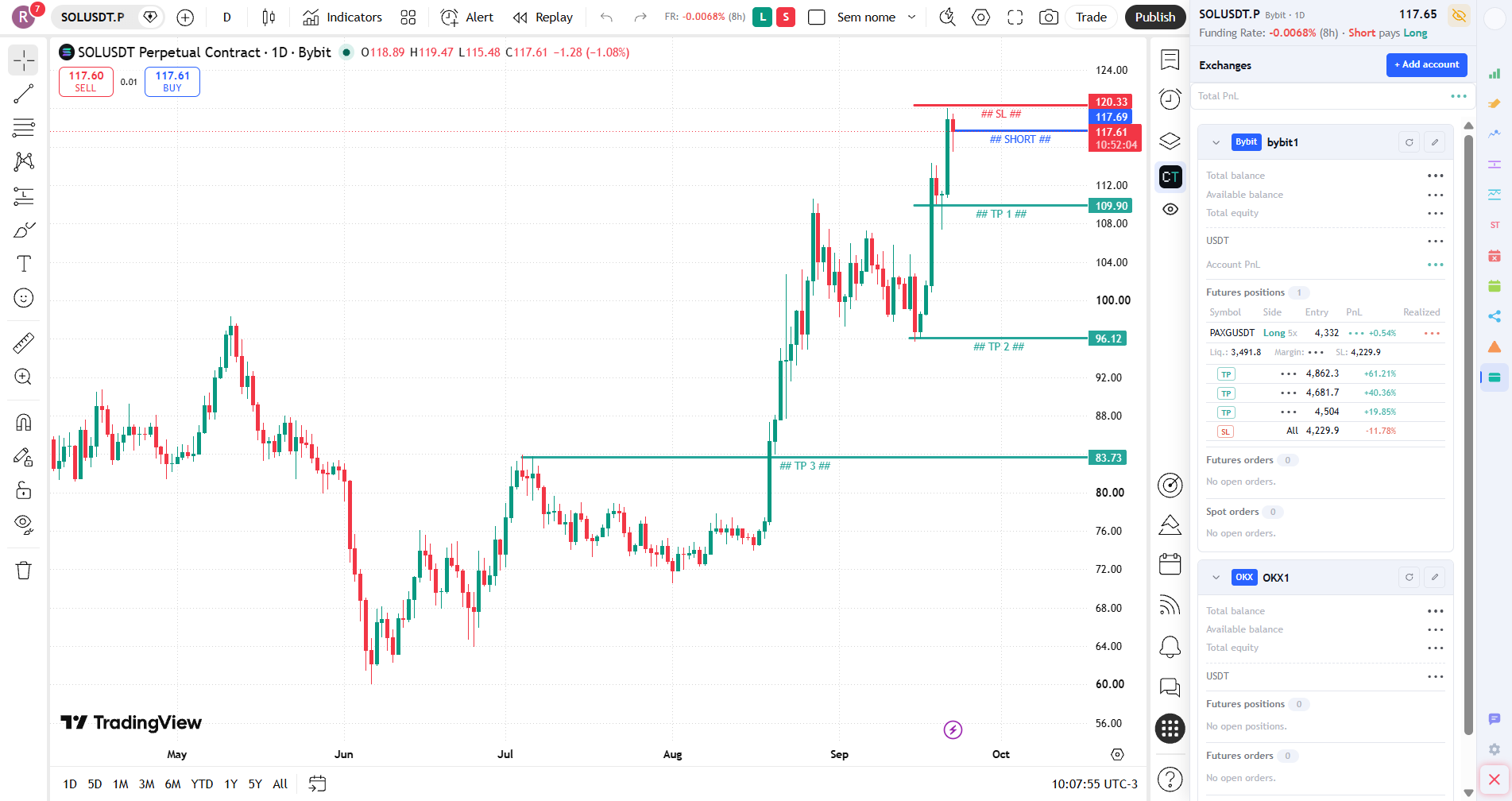
CryptoTrader - TradingView Organizer injects a fixed sidebar into TradingView Web. It brings to the chart what normally stays buried on the exchange's website — funding rate, risk badges, balances and open positions — and lets you build the trade, send it to your account and manage stop, targets and partial closes without switching between the chart and the broker's app.
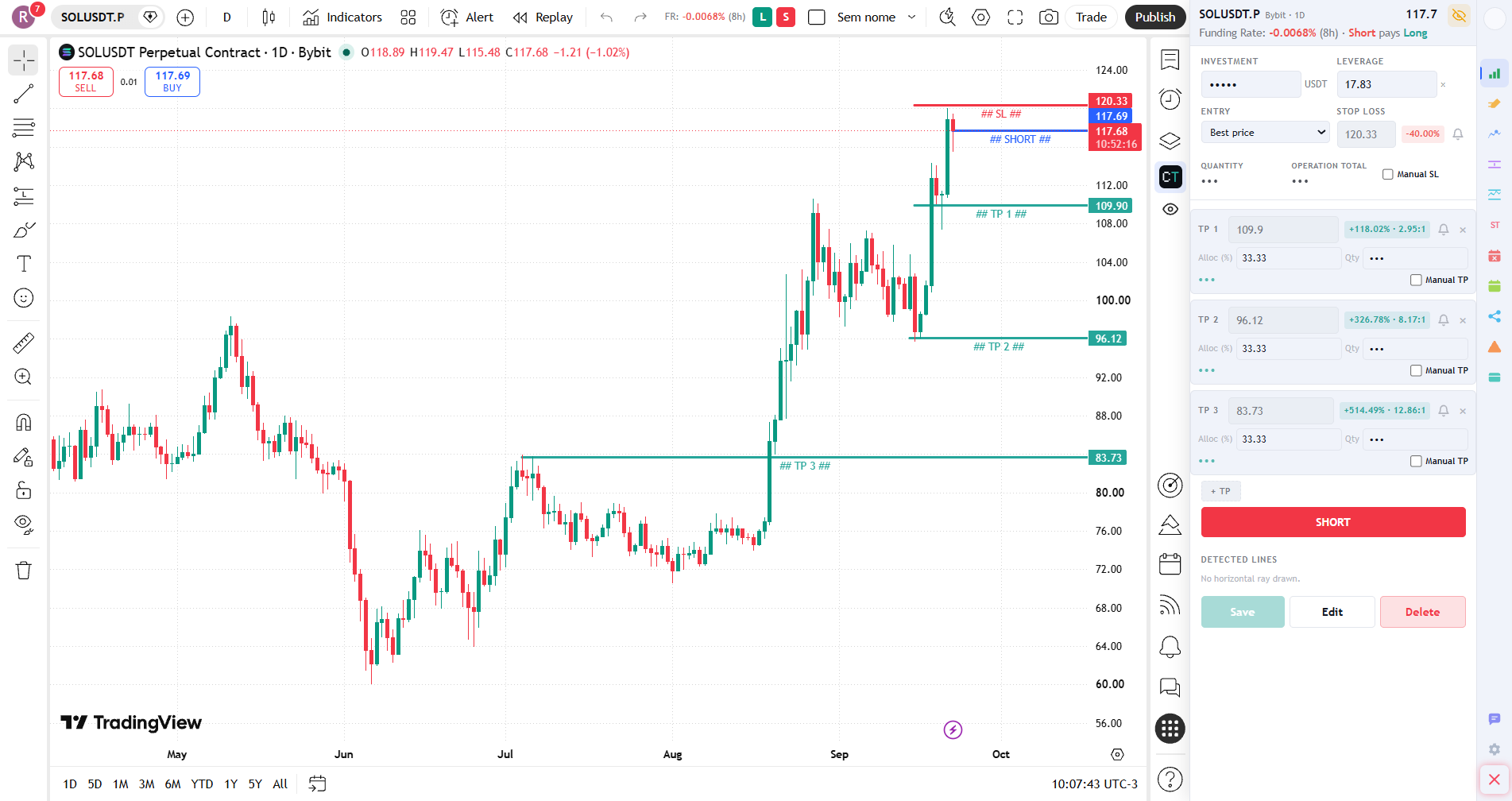
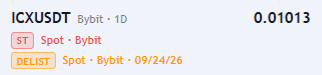
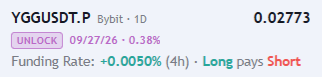
The moment you open a pair, the header shows the symbol, the exchange, the live price and the perpetual's funding rate: how much it is, how often it is charged and who pays whom. If the exchange has flagged the asset as risky, or has already announced its removal, the badges show up right there.
You enter the investment, the stop and the targets. The extension works out the quantity and the leverage needed so that, if the trade is stopped out, the loss stays within the limit you defined — and it shows the gain and the risk/reward of each target before anything is sent.
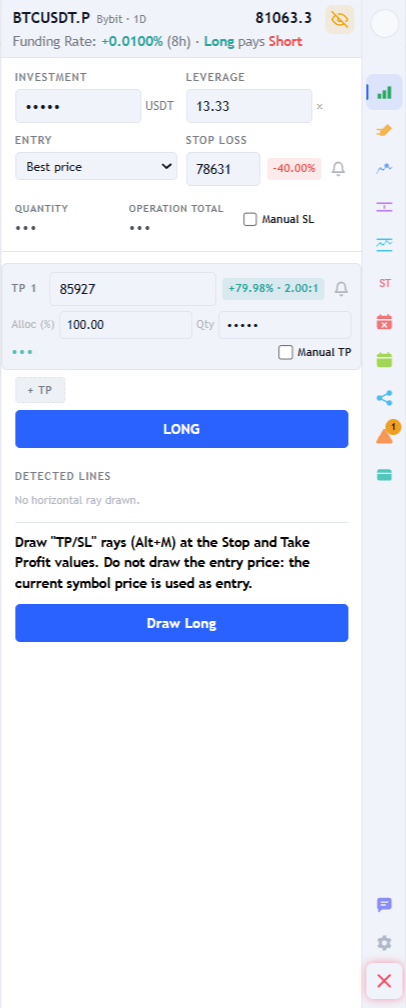
qtyStep, minimums, maximums and minimum notional respected; what you see is what will be sent.Sending always opens the trade summary: side, size, entry, stop, every target and the risk in money. Nothing reaches the exchange without that confirmation — and the warning is explicit when a protection could not be created.
One click on the bell creates the matching alert in TradingView itself, with the stop or target price already filled in — without leaving the chart.
The L/S buttons (and B/S on spot) sit on TradingView's top bar, with a size cap based on the real balance: no balance, no sale.
Once the order fills, the position panel takes over: live PnL, liquidation price, margin, stop and targets — all editable and all showing the exact value held at the exchange, not the one you typed earlier.
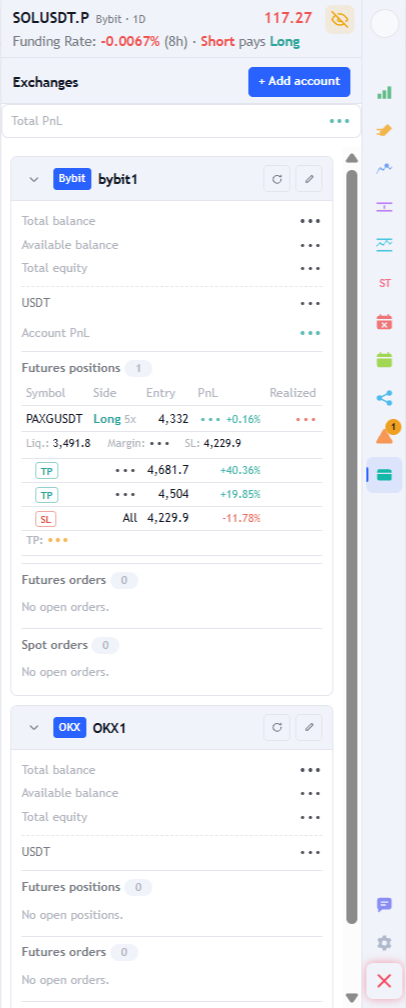
Register each exchange's API key in the sidebar itself: pick the exchange, name the account, paste the key and state its permission. The Exchanges tab consolidates balance, equity, PnL per account and the grand total — with each position's protections right underneath it.
Mark the key as read-only and the extension blocks any write before it reaches the exchange. Only want to watch? You don't even need to enable trading on the API — and withdrawal permission, never: the extension does not use it.
Each account is a collapsible card with nickname, balance, colour-coded PnL and positions — plus a subtotal per exchange and the grand total at the top.
Each position's symbol is a link: click it and the chart switches to that pair, on that account's exchange.
Moving averages and support and resistance levels are computed from the candles, across several timeframes at once, and drawn on your chart with one click — labelled, with the distance to the current price, and refreshed on their own.
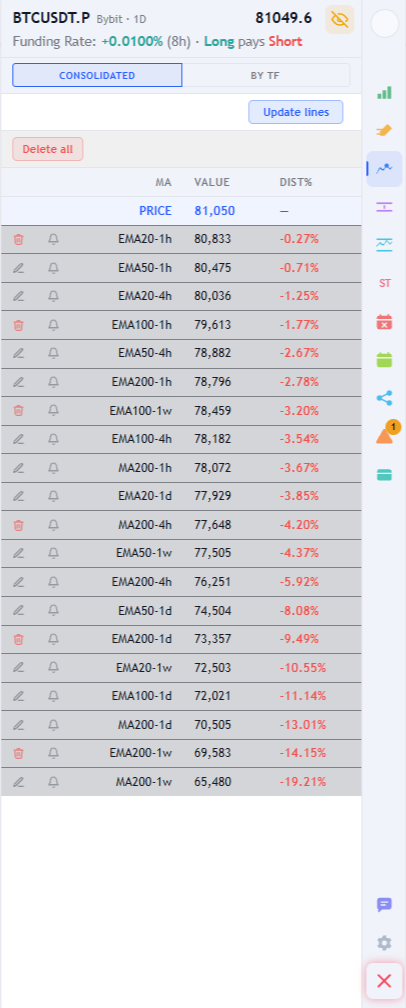
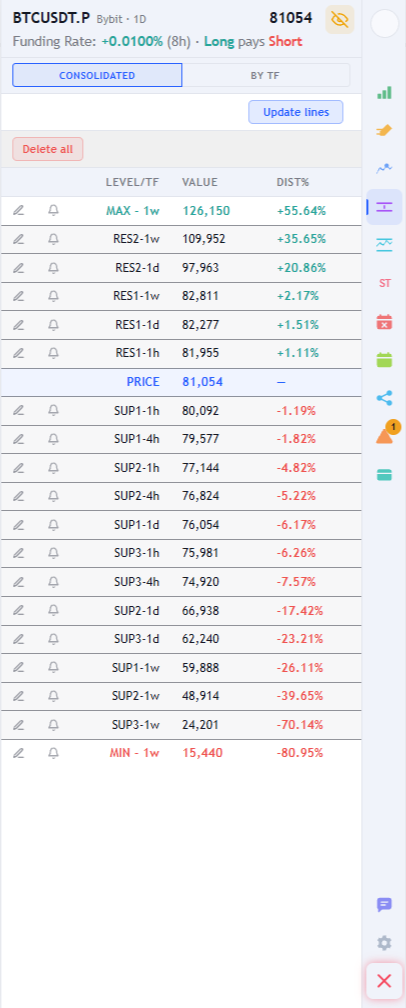
EMA20, EMA50, EMA100, EMA200 and MA200 (configurable) across several timeframes, sorted by distance to the price. Above the price they act as resistance; below it, as support.
Just enter the level: above the current price it becomes resistance, below it becomes support — a dashed line created on the spot, with the distance percentage in the label.
Averages and levels side by side, to see at once where the price is likely to react — with different line styles for support and for resistance.
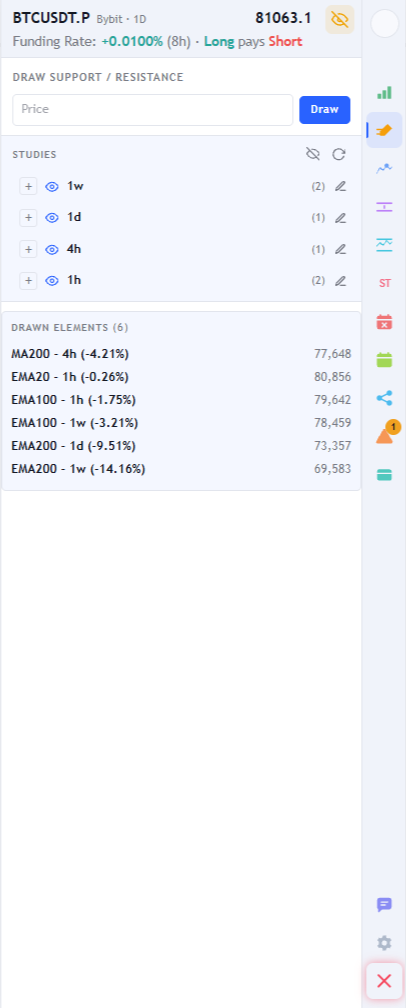
This tab computes nothing: it lists what is drawn — the averages, the supports and resistances, your own drawings and the lines of trades opened through the extension — grouped by timeframe and by type. Every group and every item can be hidden and shown again with the eye, and there is a hide everything to read the price in peace and then put it all back exactly as it was. The same eye is available on TradingView's toolbar.
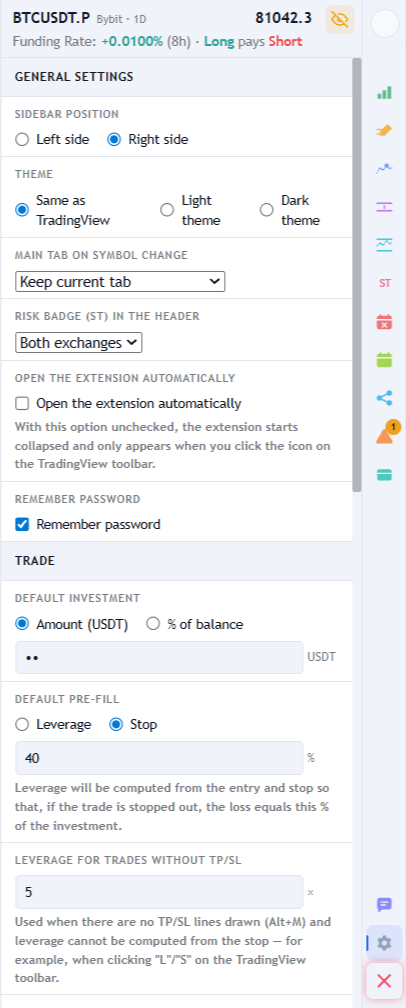
The values you always use are stored and come ready on the next trade — from which side of the screen the bar sits on to the percentage of the investment you accept to lose on a stop.
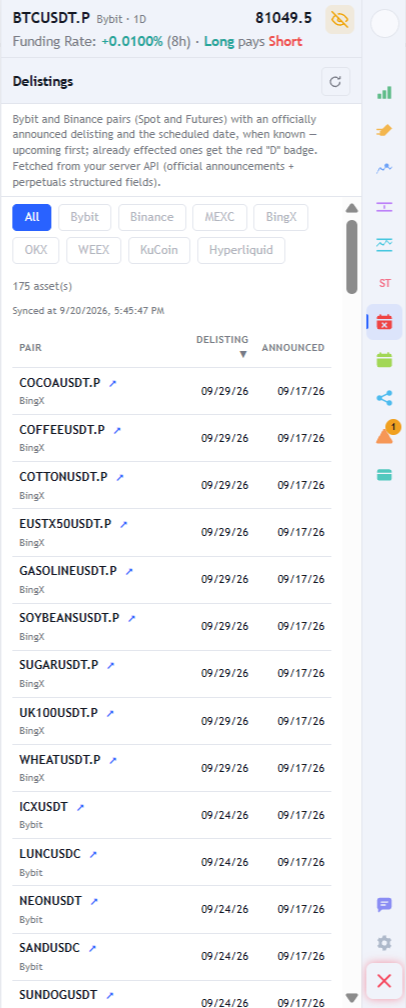
Three tabs gather the exchanges' official notices in a single place — from the risk badge to the removal announcement, the pairs that are arriving and the scheduled token unlocks. Click any row and the chart switches symbol right away.
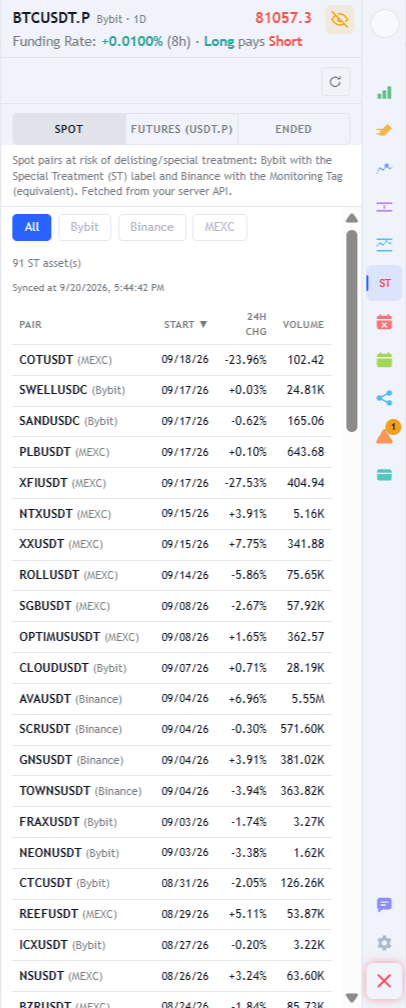
The futures ST badge does not exist in the public API: the full list comes from our server, with price, change and volume. It brings together Bybit's Special Treatment, Binance's equivalent Monitoring Tag and the ones flagged by MEXC, with a filter per exchange and a history of closed episodes.
Official announcements from eight exchanges in one place, with the scheduled date of each delisting. Pairs already removed get the red badge, and the pair you are looking at gets the badge in the header.
The mirror image of delistings: pairs with an announced launch on Spot and Futures, with the expected date and the official announcement one click away.
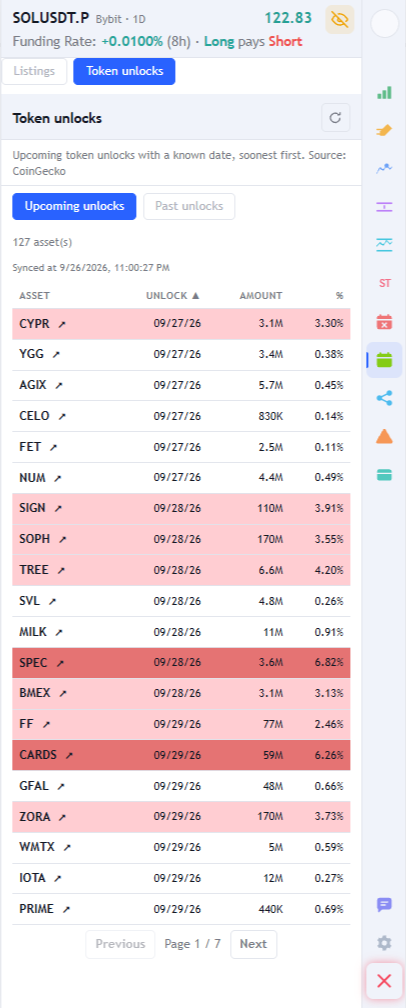
Unlocks of team and investor tokens tend to put pressure on the price. The Listings tab gained the Token unlocks sub-tab, with the scheduled dates and the size of each one.
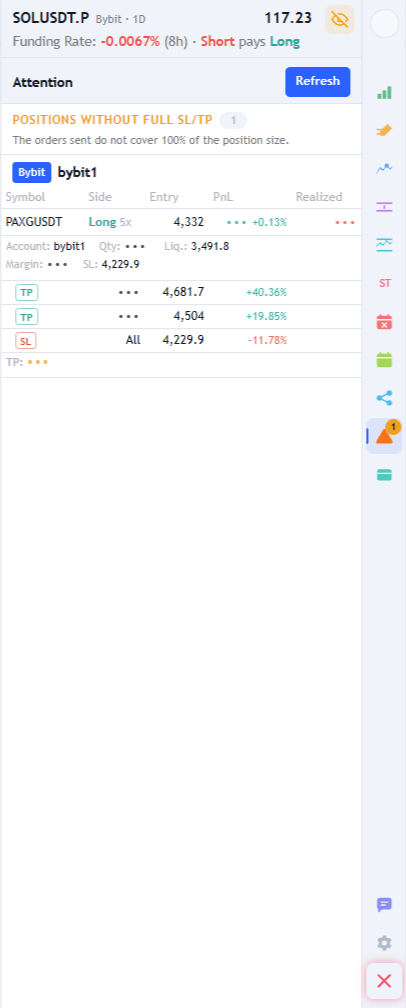
Knowing that an asset went into ST is not enough — what matters is whether you are positioned in it. The Attention tab goes through every connected account and shows only what needs a decision from you; the number on the icon says how many points are pending.
Every visible element of your chart — averages, supports and resistances, Fibonacci, manual drawings — becomes a 6-character code. Whoever receives it redraws everything on their own chart, with the same values, colours and styles.
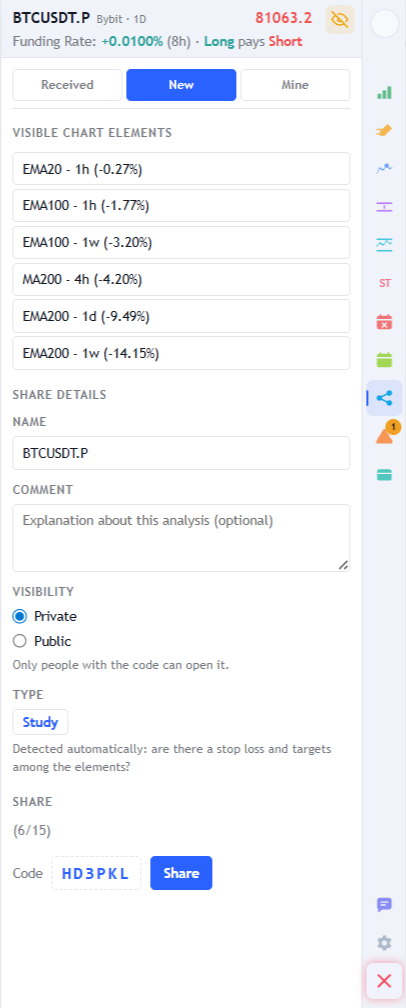
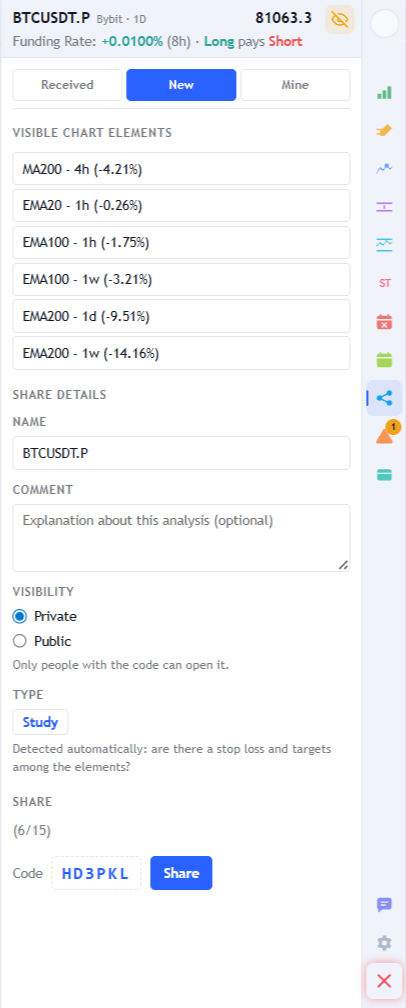
The list shows everything drawn on the chart; click an item to leave it out. Give it a name, write a comment and decide whether the analysis is private — only whoever has the code can open it — or public.
Your analyses, with the code to pass along, how many people have already drawn them and the comments you have received.
One click reproduces the whole analysis on your chart, without duplicating what was already there; clicking the name opens a conversation with the author. The draw button only shows up on the right symbol — if it differs, a link switches the pair for you.
Signing up asks for a nickname, an e-mail and acceptance of the terms. A message arrives with a link; there you create your password. Back on TradingView, the password unlocks the tabs — and the remember password option saves you from typing it again. The exchange keys never leave your browser.
The extension speaks the language you use on TradingView — detected on its own, nothing to configure.
The extension is under review for publication on the Chrome Web Store. In the meantime, the manual shows the sidebar from the inside: the tabs, the flow of a trade and what each button does.
Read the full manual1 install the extension
·
2 open tradingview.com
·
3 register nickname + e-mail
·
4 connect the exchange
·
5 trade from the sidebar